

Manually Change App Name
In main directory Go to app -> src -> main -> AndroidManifest.xml
Change YOUR_APP_NAME to your app name
Androi:label=""
Node Setup
Requirements
- Important
- Required Admin Panel
- Required Subdomain configuration for the setup panel
- subdomain.yourdomain.com
- Unzip the GoDoctor Admin Panel 1.0.zip file and ONLY use the extracted /sub domain root folder and upload in below directory based on your server
- Node.js 18+
- MySQL >= 8
- Apache HTTP server
- OpenSSL PHP Extension
- Enable Output_buffering in Php.ini File
Node.js App
- Make sure that you have the Setup Node.js App option in your Software section.

App Setup steps
- After that click on Setup Node.js App

- Click On Create Application to Setup Node.js app

- When you click Create Application you have this

- Thereafter, select drop down of Node.js version

- Make sure to have “20.11.1 ” version in your drop down list
- You have to select “Production”
- After that in Application root, you need to add the sub domain folder name for your application where you are going to upload your code/zip
- Then in Application startup file you need to add app.js” in field
- Now navigate to the File Manager from Tools
- Thereafter, in the directory structure, you find the Application root folder which you created during the App Setup
- Go to the Application directory Click on Upload to upload your code/zip
- Go to the Application directory Click on Upload to upload your code/zip
- After Successfully Upload of code/zip
- You will see the zip in your application sub domain root directory. Now Extract it
- After extract, you will get this kind of structure


Upload code/zip


Database Connection & Start App
- In Linux
- Path: var/www/html/
- In cPanel:
- Inside phpmyadmin
- Create the database on your server
- Import GoDoctor 1.0.sql file in created database. ( Note : Only necessary for those client, who is setup project first time. )
Already imported GoDoctor 1.0.sql
1. Change Database settings
For database settings, open the /middleware/db.js file with a text editor and set your database settings.
Enter database name, database username, database password and the host details


2. Start App
Now Navigate again to the Setup Node.js
After Successfully installation of Npm Start the app

Admin Default credentials
Phone/Email    : 9999999999 or admin@admin.com
Password : 123
1. Quick Start Admin Menu Guide
- Online Appointment Booking: Patients can easily book appointments with doctors anytime, from anywhere.
- Doctor Profile Management: Display detailed doctor profiles including specialization, experience, timings, and ratings.
- Patient Registration & Login: Secure sign-up and login for patients with email or phone number.
- Real-Time Slot Availability: View and choose available appointment slots in real-time.
- Multiple Specialty Support: Add and manage doctors from various medical specialties.
- Admin Dashboard: Full control panel for managing doctors, patients, schedules, and reports.
- Doctor Panel: Doctors can manage their availability, appointments, and patient records.
- Patient Medical History: Maintain medical history, prescriptions, and visit records.
- Secure Payment Gateway: Support for online payments via credit/debit card, UPI, and wallets.
- Video/Tele Consultation: Option for remote consultations via video or voice call.
- Multi-language Support: Interface available in multiple languages for wider accessibility.
- Reports & Analytics: Visual insights on bookings, revenue, doctor performance, and more.
- Rating & Reviews: Patients can rate doctors and leave feedback for others to view.
- 24/7 Availability: System works around the clock with support for emergency bookings.
- Responsive Design: Fully optimized for mobile, tablet, and desktop devices.

Base URL Configuration
- Important
- Please do not change anything in the flutter code. If you use PHP backend you only need to set the base URL otherwise set only the puchase code.
With PHP Backend
Change Base URL, Add google Map API & Onesignal App ID
In Main directory goto the utils folder and open config.dart file and change your BASE_URL value.
const BASE_URL="ADD YOUR BASE URL/api";
How to get Base URL
Open your Admin login page and copy the URL.

Firebase Configuration
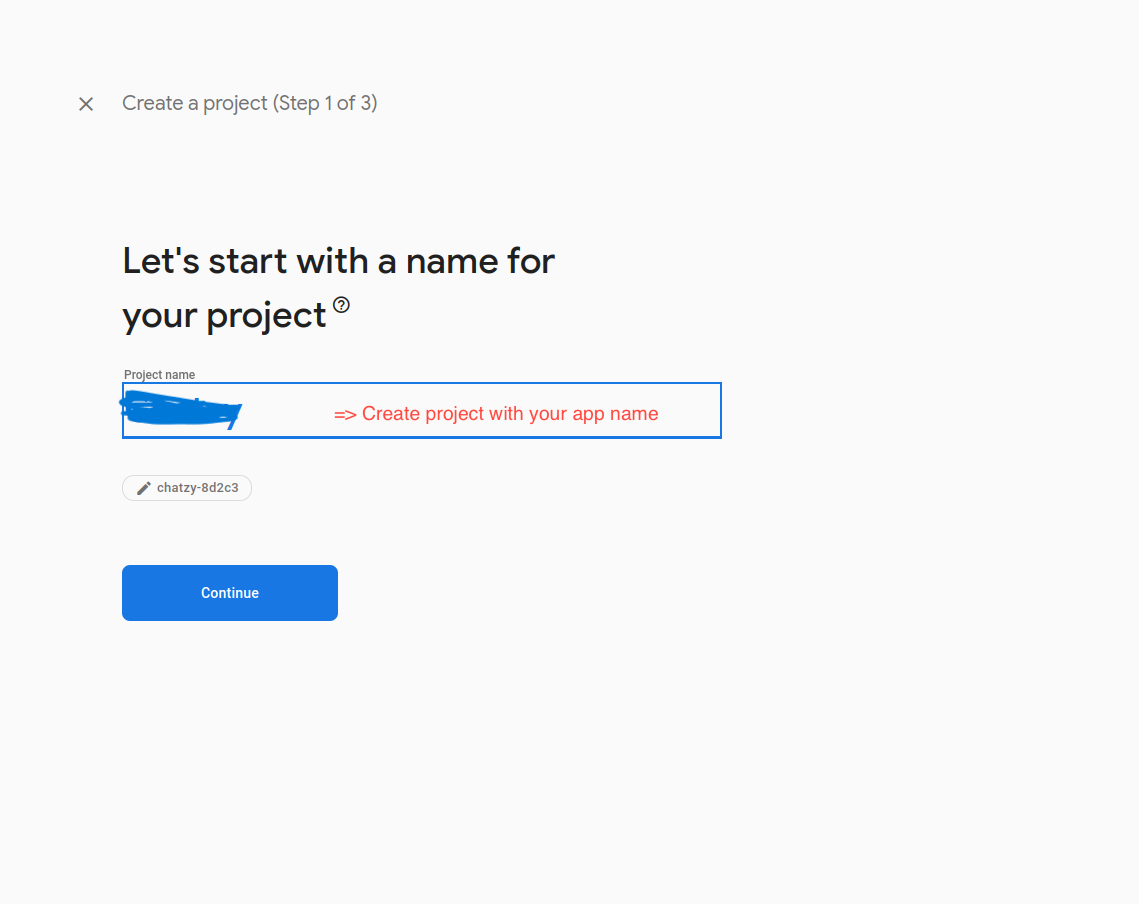
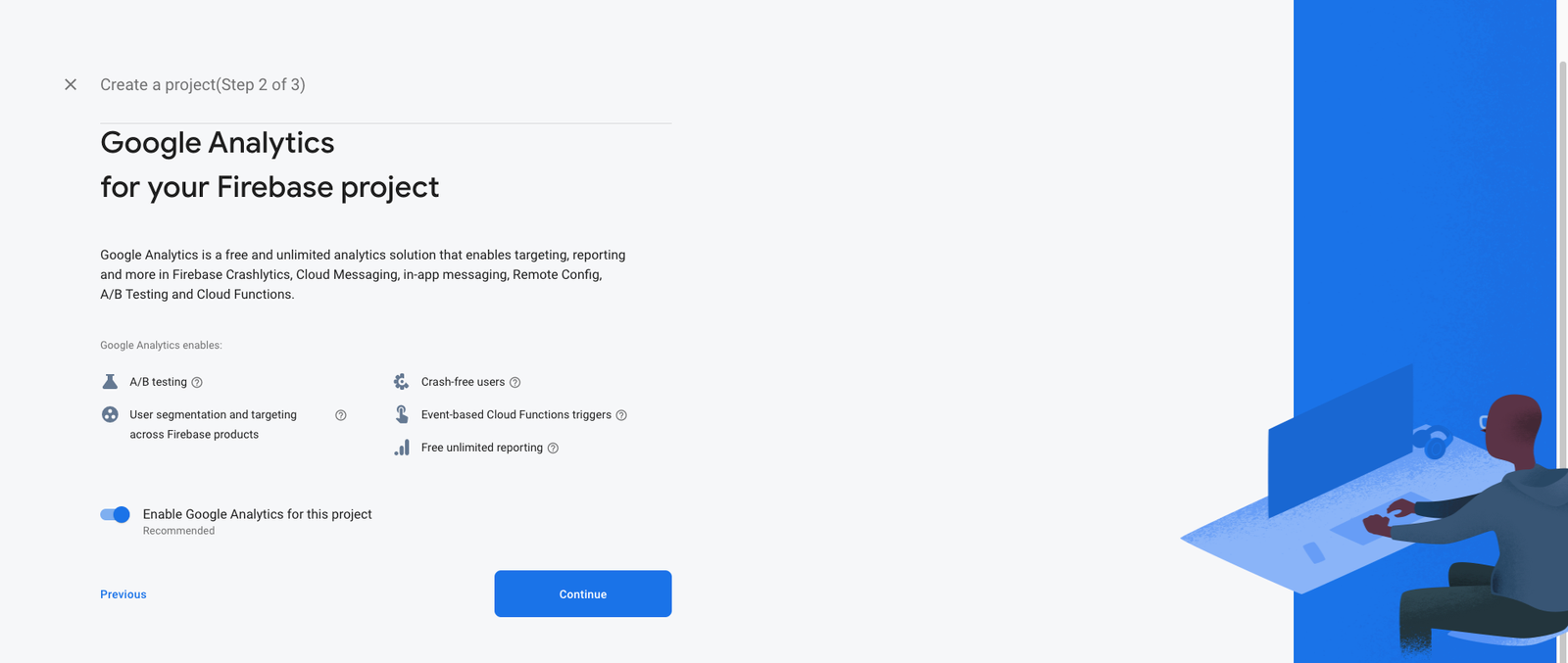
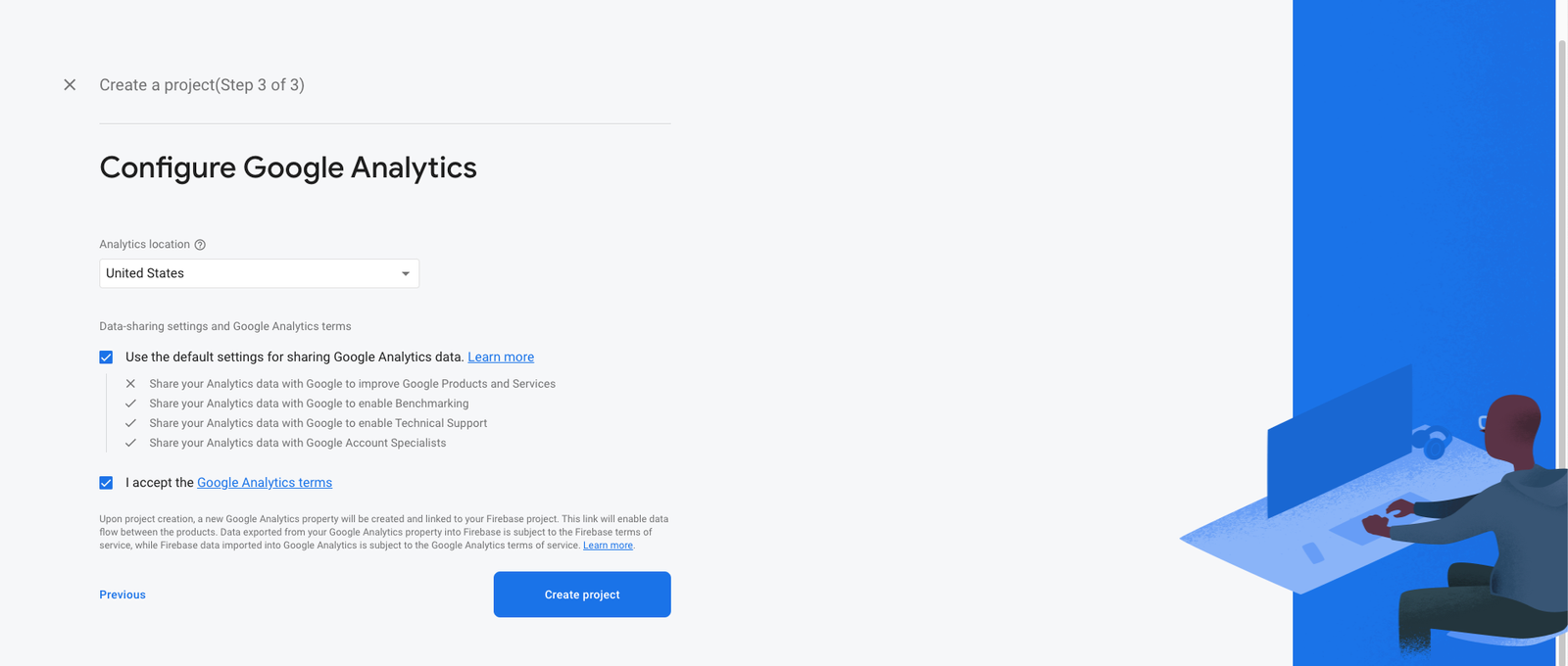
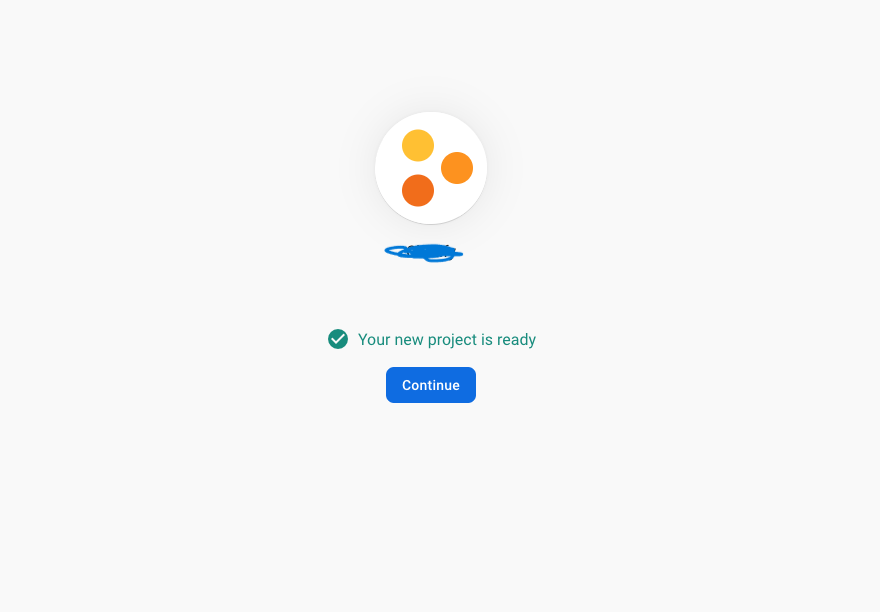
Create a Firebase project
Before you can add Firebase to your Flutter app, you need to create a Firebase project to connect to your app. Visit Understand Firebase Projects to learn more about Firebase projects.
- Warning
- If you're releasing your Flutter app on both iOS and Android, register both the iOS and Android versions of your app with the same Firebase project.
Visit for more information on how to setup for Android
Visit for more information on how to setup for iOS
Register your app with Firebase
- In the center of the Firebase console's project overview page, click the Android icon to launch the setup workflow.
- Enter your app's package name in the Android package name field.
- Warning
- Make sure that you enter the ID that your app is actually using. You cannot add or modify this value after you register your app with your Firebase project. Both applicationId should be matched.
- Click Register app.
- If you haven’t Firebase Project Account ? Click here for create projet https://console.firebase.google.com/
Android :
- Select an Android app in the firebase console.
- Write project package name and SHA-1 Key.
- Download google-service.json file and keep in project root directory
- Example Chatzy(Project Name) -> android -> app
- Replace the file in "android/app"
- Update in project -> build.gradile
- Update in project ->android -> app -> build.gradile


iOS:
- Create an IOS or Android click on Add app
- Select an iOS app in the firebase console.
- Write bundlid and APPID
- Download the Googleservice-info.plist file
- Replace the file in "ios/Runner/info.plist"
- Update "FirebaseApp.Configure()" in AppDelegate File


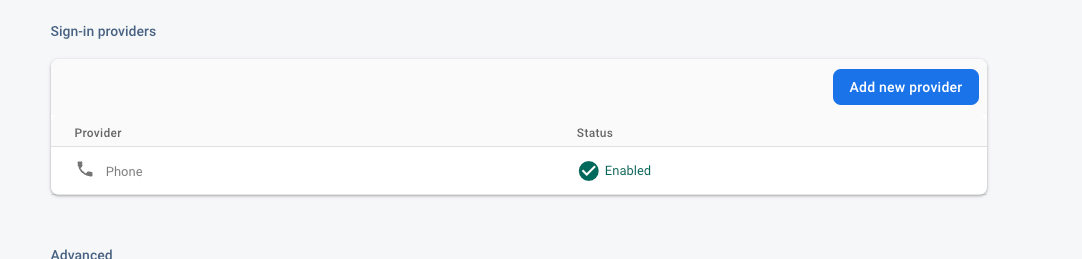
Firebase Configuration
- Please enable phone.
Firebase Cloud Messaging API (HTTP v1)
- 1. Create A Firebase Project

- 2. Now go to your Firebase project, On left hand side panel click on setting
icon. On click Setting button pop open open. In that click on Project
Settings

- 3. On the subsequent page, click Enable. You may need to wait a few minutes for the action to propagate to Firebase systems.

- 4. Generate a Private Key JSON file
In Project settings, go to the Service accounts tab.
Click Generate new private key at the bottom of the page.

- 5. You'll then see a warning window. Click Generate key.
Save the JSON file somewhere secure. You will need to access it shortly.

OneSignal Configuration
Create a OneSignal Account and Make 3 different projects inside
One Signal is used for send the push notification into mobile or web. for more detail about OneSignal Documentation.
if you have own OneSignal then login and create project. if you does not then register account and create project
Follow below steps
- Click in to New App/Website button.
- Enter the App/website name in AppName Field.
- Select one platform configure, for Example(iOS,Android,Web push).
- After Select Any One platform to configure. we can get Firebase Server Key and Firebase Sender Id. If you can select iOS platform then you can required the production Push Certificate.(.p12 Certificate) and then get Firebase server Key. Then Click on Save Button.
- After get Firebase Server key and Sender ID. Goto the firebase app and in left side you see Project overview and settings click on it and select Project Settings. and In Setting. select Cloud messaging. and Enter Server Key and Sender ID and at the end Click into Save Button.
Step 1: Create onesignal project in your account Choose android platform

Step 2: Click on Service Account JSON > Choose file and select the JSON file you downloaded from your service account. (Firebase Cloud Messaging API (HTTP v1) Step 4)

Step 3: Choose Target SDK as Flutter

Step 4: Now copy App ID as shown below

Step 5: Paste this Onsignal App ID & Base URL here
static const String oneSignel ="ADD YOUR APP ID";static const String ImageBaseurl ="ADD YOUR APP ID";

Step 6: If you didn't have copy app id before then you can get Onesignal App ID from this settings here and paste it to admin setting tab

Step 7: Onesignal App ID & Rest Api Key paste it to admin setting tab

Twillo Configuration
Follow this link https://help.twilio.com/articles/14726256820123
- NOTE :
- Open Admin -> Goto Setting page -> Scroll Down and Add key
MSG91 Configuration
Follow this link https://msg91.com/help/where-can-i-find-my-authentication-key
Follow this link https://msg91.com/help/where-to-find-my-flow-id
- NOTE :
- Open Admin -> Goto Setting page -> Scroll Down and Add key
Add Google Map API Key
- 1. You need to generate the google API key. Visit this link - https://developers.google.com/maps/documentation/embed/get-api-key
- 2. You need to enabled mentione APIs: Direction API, Distance Matrix API, Geocoding API, Maps SDK for Android, Maps SDK for iOS, Place API.
- 3. You have to enable billing account. Visit this url for activating: https://support.google.com/googleapi/answer/6158867?hl=en
- 4. After generating API key, you have to put it on 3 different place for Android, iOS and web.
- NOTE :
- Web: Open Admin -> Goto Setting page -> Scroll Down and Add key
- Android: App -> src -> main -> AndroidManifest.xml
- iOS:
/iOS/Runner/AppDelegate.swift Add it after Bool { iOS: GMSServices.provideAPIKey("YOUR KEY HERE")
v1.0(19 November 2024)
No matching client found for package name
- The error is "package_name" in google-services.json is not matching with your "applicationId" in app gradle.
- Just make sure the package_name and applicationId both are same.
Flutter SDK Not Available
Download the SDK and point the SDK folder path in your future projects.
There are different sources you can try
- You can clone it from the Github Repository
- Download SDK zip file + extract it after downloading
- You can also Download any version(including older) from here (For Mac, Windows, Linux)
Authorization header not found
Message: Authorization header not found
Note: If you faced this error during development then this error due to header not set on your admin panel
Solution: Just check Enable JWT Authentication section wordpress document to resolve this issue
Expired token
Message: Expired token
This error occurs due to the Expired user token.Solution: Logout and re-login to your flutter app
Unsupported gradle version 7.*.*
Message: Unsupported gradle version 7.*.*
Solution:
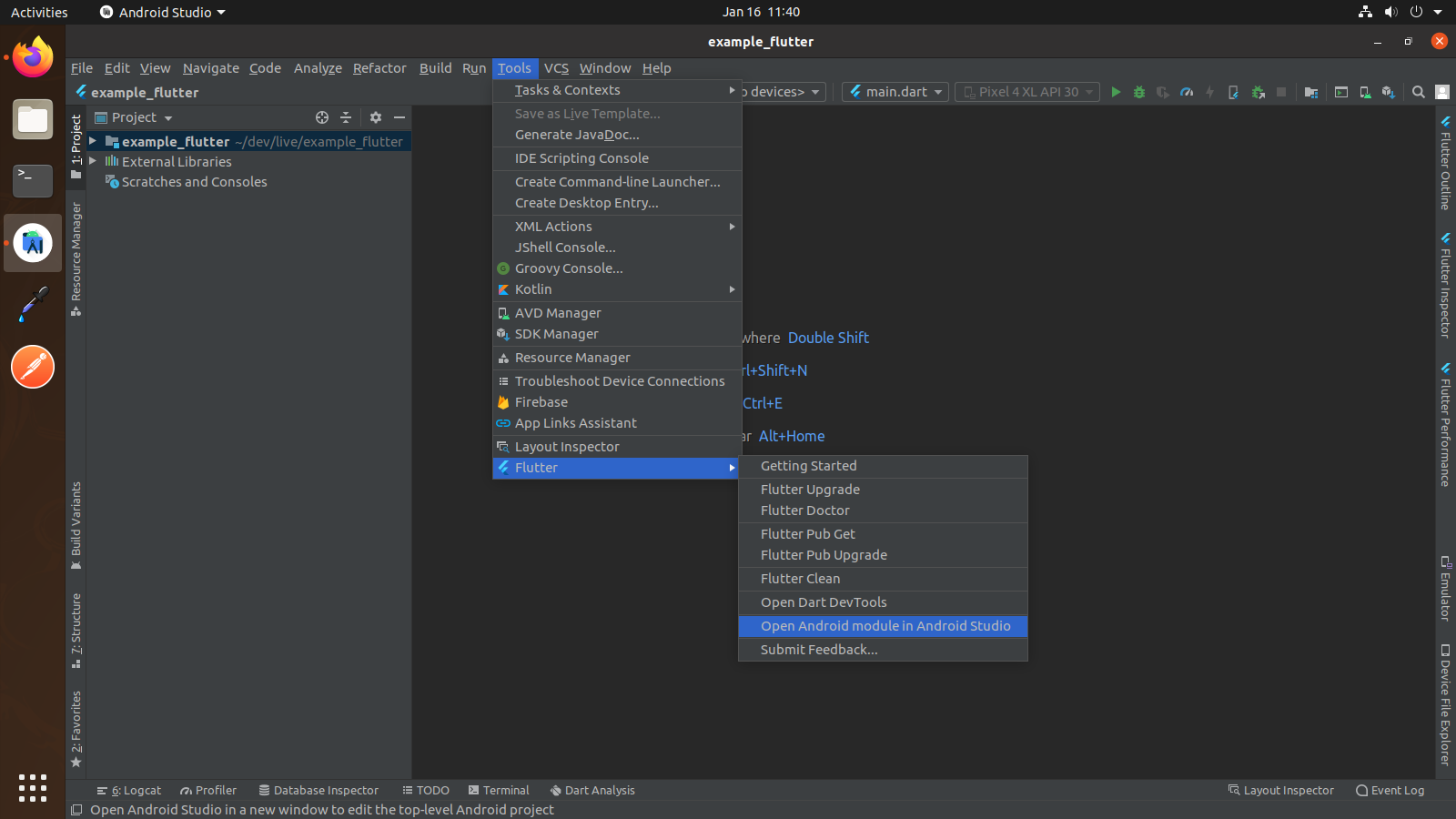
1. Open project_root_directory/android in Android Studio
2. Wait for indexing
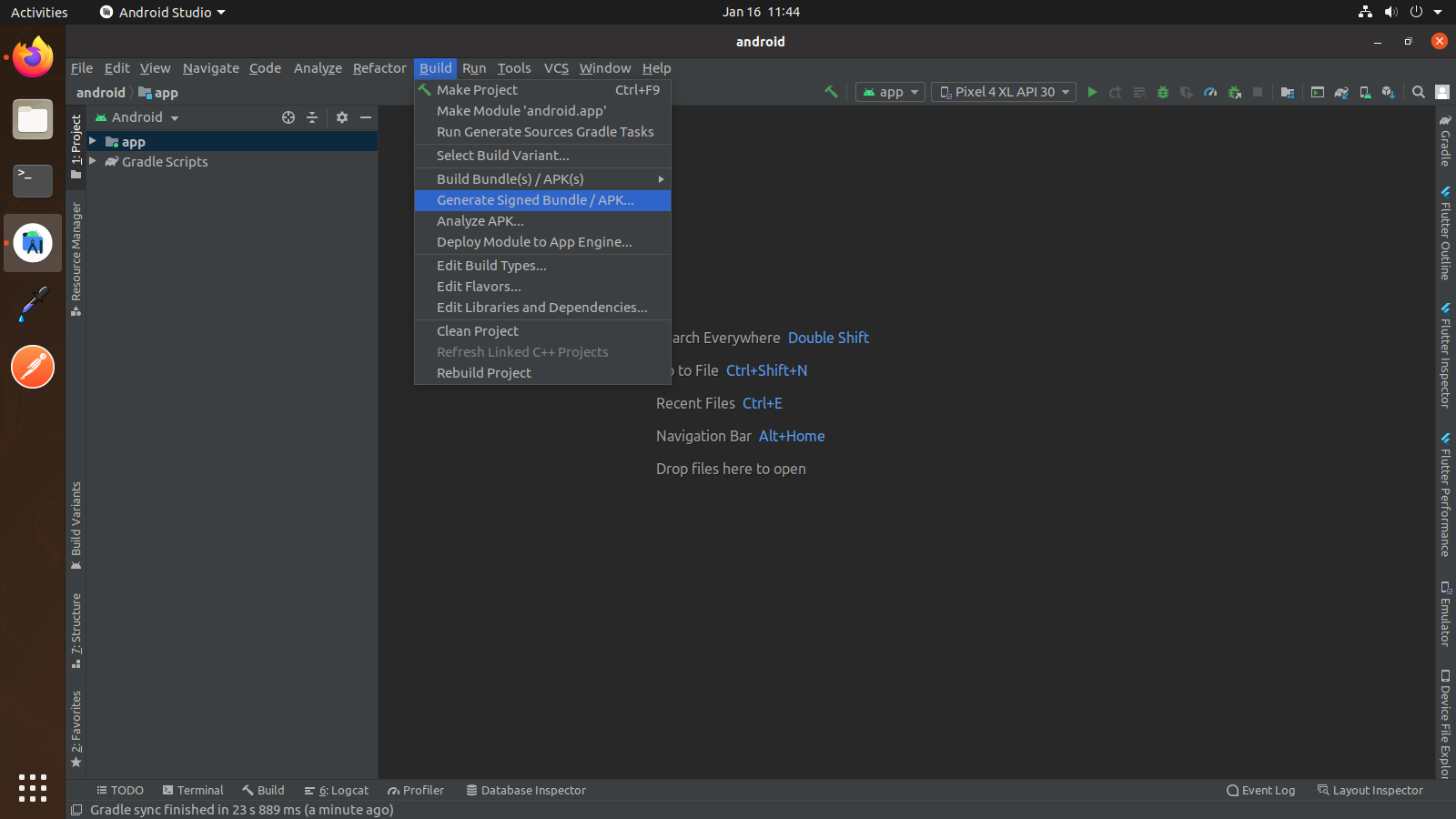
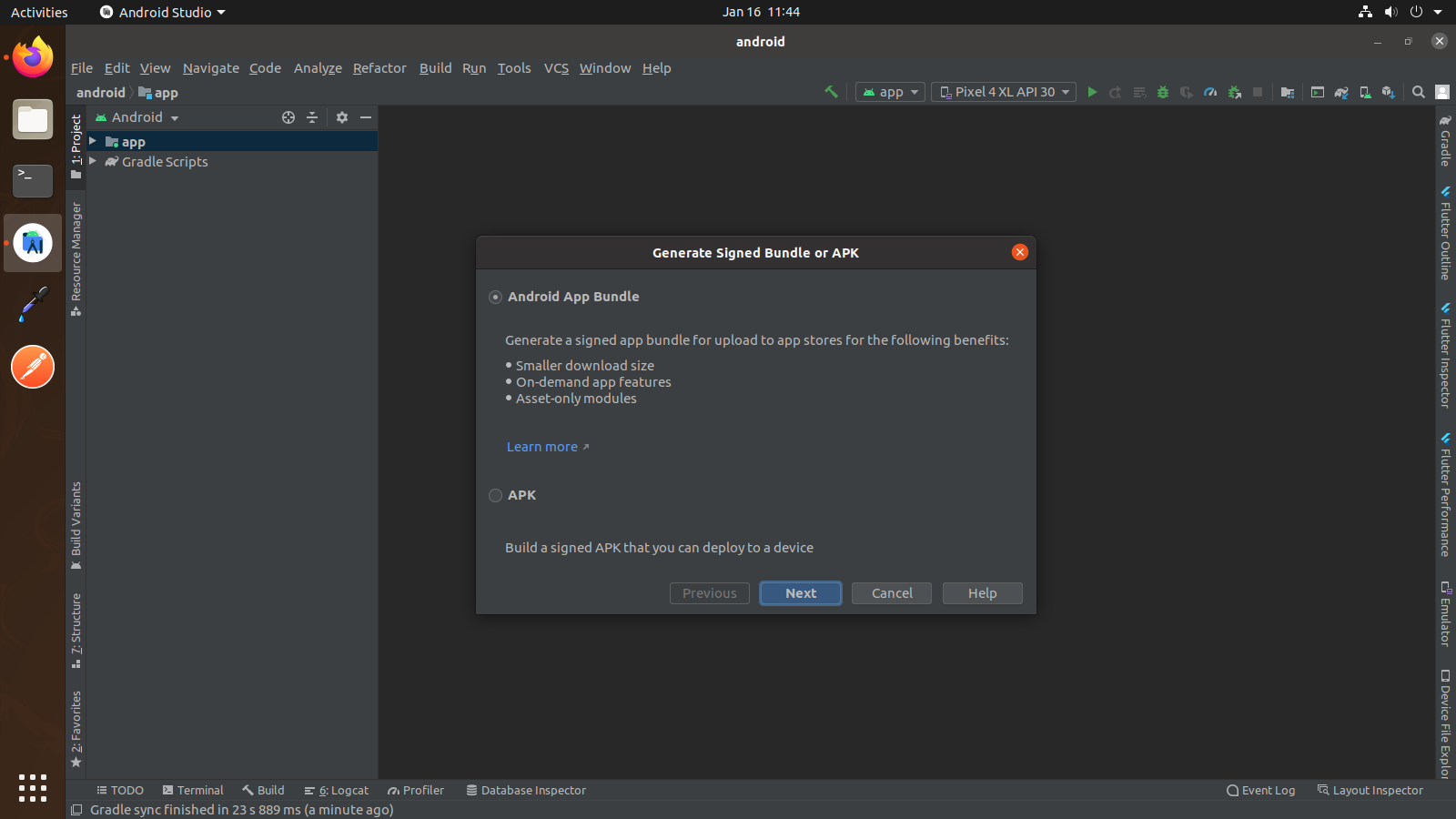
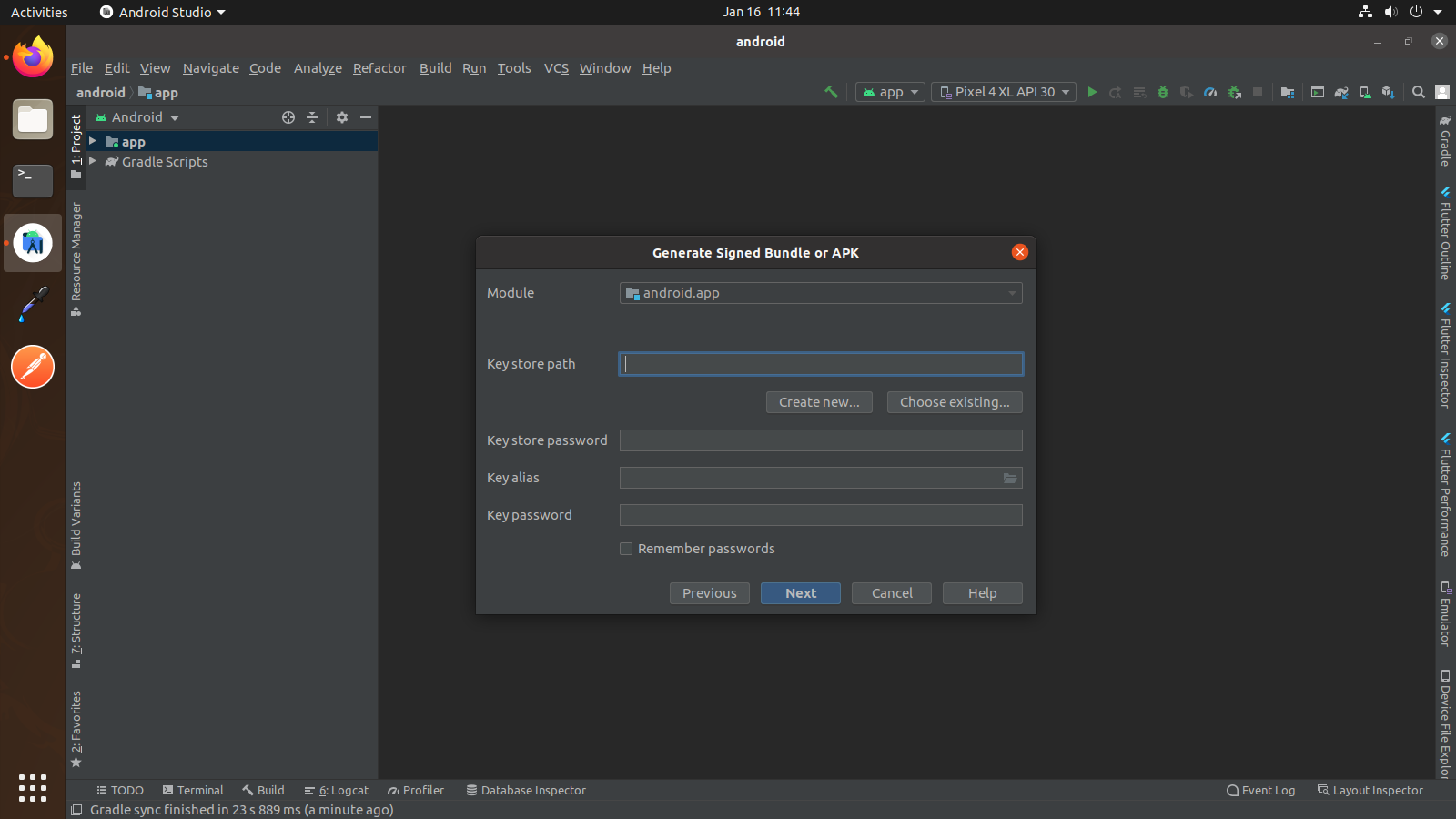
3. Now run your application from android module
Help & Support
We like to hear you out when you get stuck or encounter difficulty with our products. As soon as you buy one of our products – you can open a support ticket and share your concern right away. Skype CSCODETECH or email: cscodetechuser@gmail.com
Support Policy:
It is recommended that before submitting a ticket you take a close look at product documentation (Docs folder in the archive you have downloaded from Themeforest/Codecanyon). To get technical support and assistance, you need to have a valid purchase code. You will find this when you SignIn your Codecanyon/Themeforest “Download” page. Click on the product’s download link.
Please Note:
Free support policy includes troubleshooting, technical assistance with the product only. It does not include any customization, additional features integration or concerns about third-party plugins compatibility. But, support is applied to plugin(s) we have developed and integrated ourselves. We appreciate your understanding!
You can expect answer within 24-48 hours, usually as soon as possible in the order they were received.
All support requests are being processed on business days (Monday to Friday) from 10:00 to 18:00 (GMT +05.30). We are in GMT+5:30 time zone. We address all the support queries 5 days weekly on the first-come, first-solve basis (Saturday, Sundays off).
We like getting positive feedback from our customers, and this is why we do our best to earn it! Write a review: https://codecanyon.net/downloads
Change Log
- Initial Release
Thank you for purchasing our application
Thank you for purchasing our application! We're glad that you found what you were looking for. It is our goal that you are always happy with what you bought from us, so please let us know if your buying experience was anything short of excellent. We look forward to seeing you again.